


Version 5.03 Windows 7 compatible
An All-In-One PC/Internet Activity Surveillance and Monitor. Automatically Record, Archive and Review Your Employees’ PC and Internet Activity.


Guide to Use Office Cyber Alert with Antivirus & Anti-spyware Applications
Most anti-virus or anti-spyware applications can correctly distinguish between legitimate parental monitor tools and spyware. However, there are some security applications that may falsely flag parental control software including Office Cyber Alert as “spyware” or “potential threats”. These applications do provide the user with the ability to exclude Office Cyber Alert from future scanning.
- ● Symantec Norton 360 Users
- ● Symantec Norton Internet Security
- ● Symantec / Norton 2009 Anti-Virus Users
- ● Symantec Norton Anti-Virus 2007 Users
- ● Symantec Norton Anti-virus 2006 Users
- ● Symantec Norton Corporate Client
- ● SpyBot Users
- ● Spyware Doctor Users
- ● AOL Spyware Protection Users
- ● McAfee users
Symantec Norton 360 Users
Your specific Symantec product may differ slightly and your exact steps to accomplish the above may be different on your machine but the basic principle is the same.
1. Open Norton 360 and click on Tasks & Settings.

2. Click on Change Advanced Settings.
3. Choose Undo & Exclude option.
4. Highlight “Spyware.CyberAlert” or the Office Cyber Alert keylogger.
5. Click on Restore. Select to have Norton “Exclude selected non-viral threats from future scans” when promoted.
6. Select Close to finish.
Symantec Norton Internet Security
Your specific Symantec product may differ slightly and your exact steps to accomplish the above may be different on your machine but the basic principle is the same.
1. Open Norton Anti Virus
2. Click the Norton Internet Security tab
3. Under Settings click Spyware Protection
4. Under General Settings click Signature Exclusions
5. Click Signature Exclusions on the left
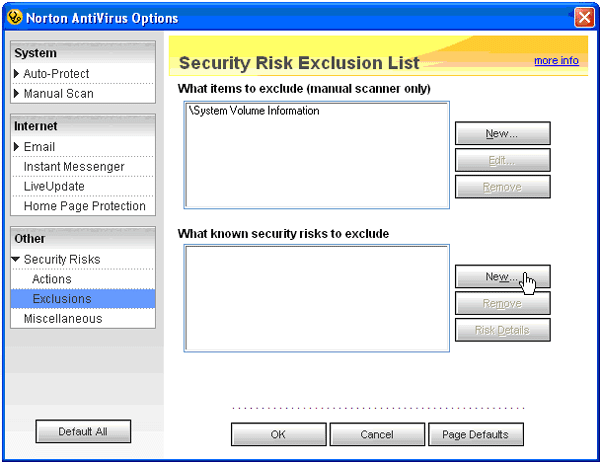
6. In "What known security risks to exclude" click New
7. Wait for the Security Risk List screen to open
8. Scroll through the list and select Spyware.CyberAlert items in the list
9. Click Add
10. Click OK
11. Close all Symantec windows
Norton will no longer actively detect and alert against Office Cyber Alert.
Symantec / Norton 2009 Anti-Virus Users
Your specific Symantec product may differ slightly and your exact steps to accomplish the above may be different on your machine but the basic principle is the same.
1. Open Symantec / Norton Anti-Virus 2009, and click on the “Settings” link.
2. Click the “Configure” link corresponding to the “Signature Exclusions” option in the “Exclusions / Low Risks” section of the settings area.
3. Click “Add” then locate and highlight the entry “Spyware.CyberAlert” from the list and then click the “Add” button.
4. After adding the new entry, you can close the signature exclusions and general settings area.
If Family Cyber Alert has already been detected by Symantec, you may find one or more entries in the "Quarantine" area labeled “Spyware.CyberAlert”. You need to restore these files and exclude these files from future scans:
1. To access the quarantine area click on the "Quarantine" link found on Norton's main screen. Then highlight the entry named “Spyware.CyberAlert” and click the “More Details” button.
2. Click the "Restore Risk" button to restore Family Cyber Alert files & components. When the confirmation screen pops up, make sure there is checkmark next to the option to add Family Cyber Alert to the Norton "Exclusions" list.
Symantec / Norton 2009 Anti-Virus Users
Your specific Symantec product may differ slightly and your exact steps to accomplish the above may be different on your machine but the basic principle is the same.
1. Open Symantec / Norton Anti-Virus 2009, and click on the “Settings” link.
2. Click the “Configure” link corresponding to the “Signature Exclusions” option in the “Exclusions / Low Risks” section of the settings area.
3. Click “Add” then locate and highlight the entry “Spyware.CyberAlert” from the list and then click the “Add” button.
4. After adding the new entry, you can close the signature exclusions and general settings area.
If Office Cyber Alert has already been detected by Symantec, you may find one or more entries in the "Quarantine" area labeled “Spyware.CyberAlert”. You need to restore these files and exclude these files from future scans:
1. To access the quarantine area click on the "Quarantine" link found on Norton's main screen. Then highlight the entry named “Spyware.CyberAlert” and click the “More Details” button.
2. Click the "Restore Risk" button to restore Office Cyber Alert files & components. When the confirmation screen pops up, make sure there is checkmark next to the option to add Office Cyber Alert to the Norton "Exclusions" list.
Symantec Norton Anti-Virus 2007 Users
Your specific Symantec product may differ slightly and your exact steps to accomplish the above may be different on your machine but the basic principle is the same.
1. Click on View History on the left side of Norton’s main screen.

2.Choose Quarantine from the drop down list.
3. Highlight Spyware. Cyber Alert and other related keylogger files. Restore the files and exclude these files from future scans.
Also, during installing or using Office Cyber Alert, you may be promoted by Norton with the message saying that it has detected Cyber Alert. At this point, you can select to exclude Office Cyber Alert from future scanning.
Symantec Norton Anti-Virus 2006 Users
Your specific Symantec product may differ slightly and your exact steps to accomplish the above may be different on your machine but the basic principle is the same.
Check "quarantine" area. Look at the entries. Select Office Cyber Alert and keylogger and restore these files and select the option to "Exclude these files from future scans."
Symantec Norton Corporate Client
Your specific Symantec product may differ slightly and your exact steps to accomplish the above may be different on your machine but the basic principle is the same.
You can exclude Office Cyber Alert from being detected.
1. On the left panel of Norton software, click Scan->Custom Scan->Options
2. Go to Actions->Security Risks->Spyware. Click on Exceptions tab and click on Add.
3. When the list of known spyware is loaded, look at the list. Find Spyware.CyberAlert. Check the box on its left. Click on Next.
4. Select First Action: Exclude. Hit Finish button. You will have Spyware.CyberAlert added to the exceptions list. Click OK to save these settings.
5. You then need to add Office Cyber Alert to the list of Exceptions for File System Auto-Protect. In the main window, go to Configure->File System Auto-Protect. Click on Actions button on the right.
6. Repeat # 2-4 to add Office Cyber Alert to the Auto-Protect Exceptions.
7. Next, you need to exclude Office Cyber Alert from Startup Scans. Open Startup Scan. Click Auto-Generated QuickScan. Click Edit button.
8. Repeat #2-4 to add Office Cyber Alert to Auto-Protect Exceptions for Auto-Generated QuickScan.
SpyBot Users
Your specific Symantec product may differ slightly and your exact steps to accomplish the above may be different on your machine but the basic principle is the same.
If Office Cyber Alert has been deleted by SpyBot, click on Recovery to restore Office Cyber Alert. Then:
1. Go to Advanced Mode;
2. On the left, click on Settings->Ignore Products->All Products. Check Office Cyber Alert.
3. Save the changes.
Spyware Doctor Users
Your specific Symantec product may differ slightly and your exact steps to accomplish the above may be different on your machine but the basic principle is the same.
1.Open Spyware Doctor, select "OnGuard" from the left-hand menu and disable the "File Guard" option (you will be turning it back on later).
2.Install Office Cyber Alert if you have not done so already.
3.Select the "Start Scan" menu option in Spyware Doctor and run a quick "Intelli-Scan".
4.After the scan has completed you should see an entry titled "Office Cyber Alert" or "Cyber Alert". Remove all checkmarks next to other entries that may be present but leave the check mark next to the "Office Cyber Alert" entry. Then right-click that entry and select "Move Checked to Global Action List". Click Yes to the subsequent popup confirmation message and then click the "Finish" button on the scan completion screen.
5.To confirm, select "Settings" from the left-hand menu and select "Global Action List". You should see an entry for Office Cyber Alert with a setting of "Allowed". If the setting is not "Allowed", right-click the entry and designate "Allowed" as the desired setting.
6.Click the "OnGuard" left-hand menu option and then select "File Guard". Click the Enable option.
AOL Spyware Protection Users
Your specific Symantec product may differ slightly and your exact steps to accomplish the above may be different on your machine but the basic principle is the same.
1. Open AOL Spyware Protection either from Windows Tray or from the program shortcut.

2. Go to Tools->Blocked Spyware. Or select Blocked Items under Spyware toolbar section.
3. Select the entry for Office Cyber Alert and click Restore button.
4. After adding Office Cyber Alert to the Allowed Items List, run Quick Scan in the main Spyware Area again. If Office Cyber Alert is detected, select Allow option next to the entry for Office Cyber Alert and click Apply Options button. Click Done to save the changes.
Depending on your specific version of AOL Spyware Protection, the steps may differ slightly. Once Office Cyber Alert has been added to the Allowed Items List, it will be excluded from future scans.
McAfee users
Click here for information on how to add an application, including Office Cyber Alert, to the Trusted Programs list in McAfee VirusScan.